
Safety
What cache files are safe to delete on Mac?
Published June 6, 2026, updated June 6, 2026
Quick answer
User-level creative app cache is usually safe to review when the app is closed, especially preview files, render cache, media cache, logs, thumbnails, waveforms, and temporary files. Do not remove projects, source media, exports, catalogs, libraries, or unknown folders.
The safest cache files to delete on Mac are user-level app cache files you can identify, especially preview files, render cache, media cache, logs, thumbnails, waveforms, and temporary files created by creative apps. Do not delete projects, source media, exports, catalogs, libraries, or unknown folders.
Quick fix: close the related app, review only folders clearly labeled as cache or temporary data, and move selected items to Trash first.
Quick checklist
| Usually safe to review | Do not delete casually |
|---|---|
| Media Cache and Media Cache Files | Premiere .prproj projects |
| Render cache and preview files | After Effects .aep projects |
| Disk cache and frame cache | Resolve databases and .drp exports |
| Thumbnails, waveforms, and peak files | Final Cut .fcpxbundle libraries |
| Logs and temporary files | Source media, exports, fonts, and catalogs |
Common creative cache locations
These paths are common starting points, not a license to delete everything inside them:
- Adobe shared cache:
~/Library/Application Support/Adobe/Common - User app cache:
~/Library/Caches - After Effects disk cache: check After Effects > Settings > Media & Disk Cache
- Premiere media cache: check Premiere Pro > Settings > Media Cache
- Resolve cache: check Project Settings > Master Settings > Working Folders
- Final Cut generated files: use File > Delete Generated Library Files inside Final Cut
Why cache is usually rebuildable
Cache is working data that apps create to avoid repeating slow tasks. Premiere may cache media, After Effects may cache frames, Resolve may cache render data, and Final Cut may create generated files.
When you remove cache, the app can usually rebuild it. The trade-off is time. Your next preview, thumbnail, waveform, conform, or render may take longer.
Manual cleanup vs review-first cleanup
| Approach | Benefit | Risk |
|---|---|---|
| Manual Finder cleanup | Fast if you know the folder | Easy to delete the wrong item |
| In-app cleanup | Usually safest for that app | May miss shared or old cache |
| Cache Kid review | Shows known creative cache paths and sizes | Focused on creative cache, not every Mac file |
Where Cache Kid helps
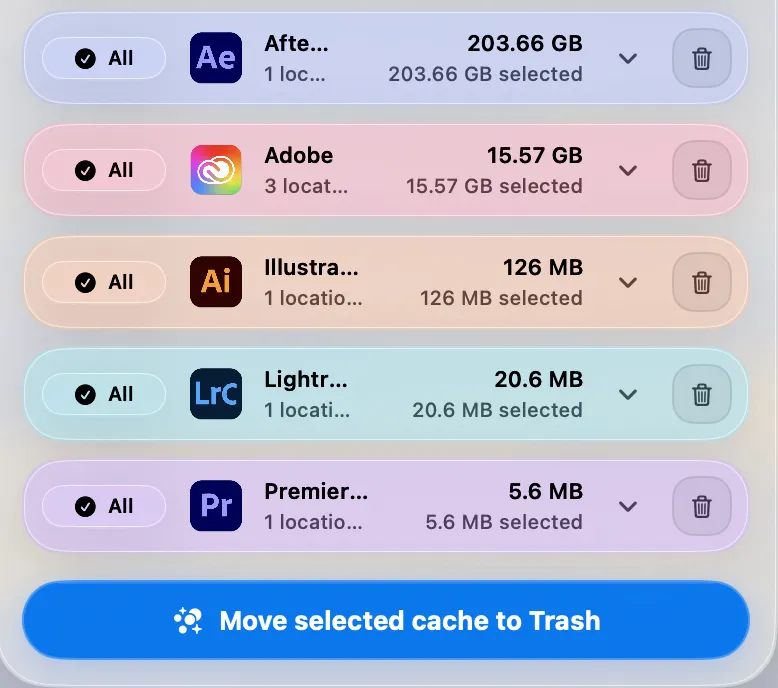
Cache Kid is designed for the review step. It scans known creative app cache locations, shows paths and sizes, and moves only selected cache to Trash.
That means you can confirm what was found before anything leaves its folder. It is a better fit for creative cache cleanup than a blind “delete all cache” sweep.
What Cache Kid will not do
Cache Kid will not clean your whole Mac, delete project folders, or promise that clearing cache makes your Mac faster. It focuses on freeing storage from creative app cache while keeping cleanup reviewable.
Related guides
- Is it safe to delete cache on Mac for creative apps?
- Adobe Common folder huge on Mac
- Premiere Pro out of memory and media cache on Mac
- After Effects disk cache full and out of memory on Mac
Last verified with current creative app cache workflows on macOS 15.
Related guide
Clear Adobe Creative Cloud Cache on Mac
Want the full cleanup walkthrough? This guide explains where the cache lives and what is safe to review before moving anything to Trash.

Review before you clear
Try Cache Kid for Adobe cache
Cache Kid is a macOS menu bar app that scans known Adobe cache folders, shows you what it found, and moves only what you select to Trash. Scans are free. Nothing is permanently deleted until you empty Trash yourself.
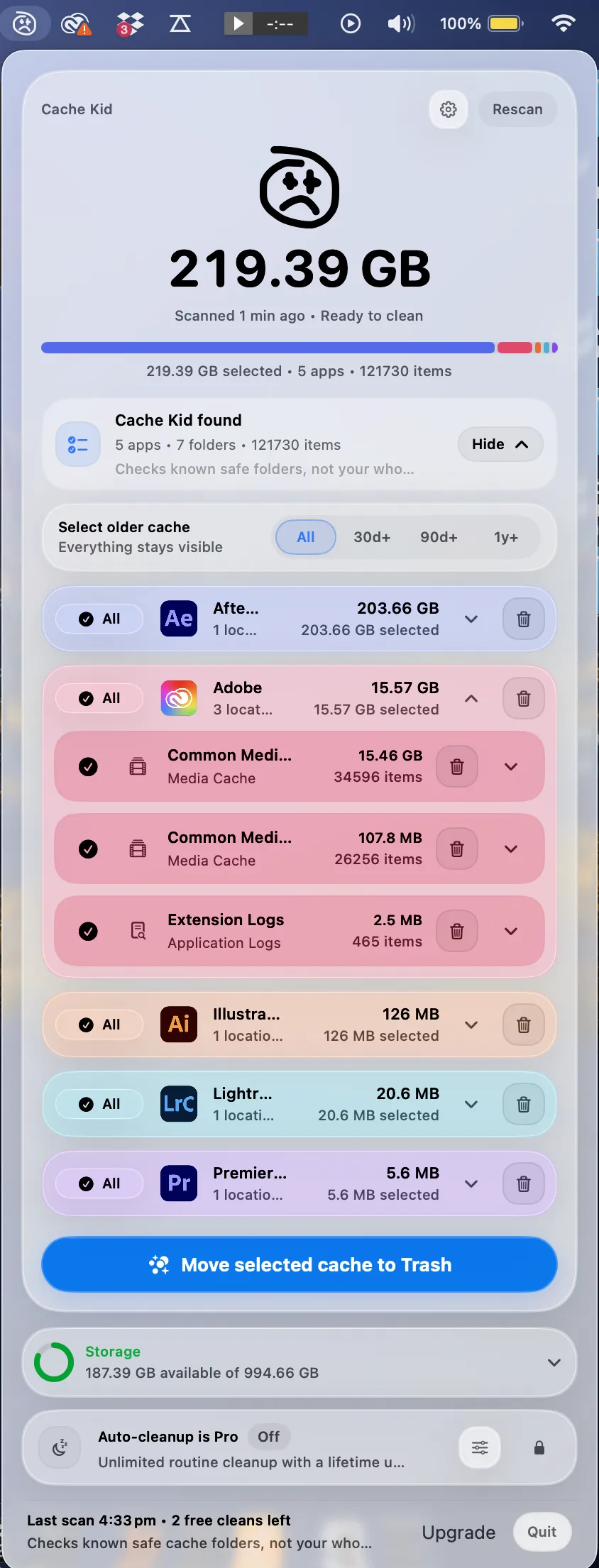
Scan, review sizes and paths, then clear only what you choose from the menu bar.
Scans are free. Upgrade only when you are ready to clear more.
Frequently asked questions
- Is user cache safer to delete than system cache?
- Usually, yes. User cache in your home Library is generally safer to review than system cache. Still, only remove files you understand, and avoid broad system folders unless you are troubleshooting a specific issue.
- Why not delete all cache folders at once?
- Apps use cache for useful work. Removing everything can slow apps while they rebuild, reset temporary state, or create new previews. Review-first cleanup is safer than a broad sweep.
- Does Cache Kid delete cache permanently?
- No. Cache Kid moves selected cache items to Trash. You can inspect or restore them before emptying Trash yourself.
More posts
Adobe
Adobe Common Folder Huge on Mac
Learn why the Adobe Common folder can grow so large on Mac and how to review media cache without deleting projects.
June 20, 2026

Mac Storage
Top Mac Cleaning Apps for Creatives in 2026
Compare general Mac cleaners and focused creative cache tools for Photoshop, Premiere Pro, After Effects, Resolve, and Final Cut Pro workflows.
June 20, 2026
Mac Storage
Why Is Mac Storage Still Full After Deleting Files?
Troubleshoot why free space does not return after deleting files on Mac, from Trash and snapshots to hidden creative cache.
June 13, 2026