
Adobe
Clear Adobe Creative Cloud cache on Mac

Quick answer
Quit all Adobe apps, delete media cache from Premiere or After Effects settings, or scan shared Adobe cache locations with Cache Kid and review before Trash. Project files, catalogs, and exports are not cache.
Adobe Creative Cloud apps share cache folders for media decoding, previews, logs, and temporary files. Premiere Pro, After Effects, Photoshop, Lightroom, and other Adobe tools can all contribute to storage use under your user Library. Clearing Adobe cache on Mac is generally safe because Adobe apps rebuild cache. Close your Adobe apps first and avoid project files, catalogs, and exports.
Where Adobe cache lives on Mac
Adobe cache is spread across several folder types:
- Shared media cache: used by multiple Creative Cloud apps for decoded footage and conformed audio
- Per-app cache: preview, render, and temporary folders specific to Premiere, After Effects, Photoshop, and others
- Logs and temporary files: generated during normal app use
Exact paths vary by app and version. Cache Kid targets known creative cache locations rather than requiring manual folder research.
Clearing cache across multiple Adobe apps
If you use several Adobe tools, cache can accumulate in shared and app-specific folders. Clearing shared media cache affects all apps that rely on it. They will rebuild as you work. Cache Kid surfaces Adobe-related cache in one scan so you can review before clearing.
Before you clean
- Quit all Adobe Creative Cloud apps
- Review scan results. Cache is rebuildable; .prproj, .aep, .psd, and Lightroom catalogs are not cache
- Expect Adobe apps to regenerate previews on next launch
Manual cleanup vs Cache Kid
| Aspect | Manual cleanup | Cache Kid |
|---|---|---|
| Shared vs app cache | Adobe uses shared media cache plus per-app folders, and it is easy to miss one | Covers Adobe shared cache and individual creative app folders |
| Review before delete | Manual cleanup across multiple Library paths | One scan surfaces Adobe cache with review before Trash |
| Multiple apps | Repeat the process for each Adobe app separately | Handles Premiere, After Effects, Photoshop, and more in one place |
| Recovery | Permanent delete if you remove the wrong folder | Trash-first so you can restore before emptying |
Review before you clear
Try Cache Kid for Adobe cache
Cache Kid is a macOS menu bar app that scans known Adobe cache folders, shows you what it found, and moves only what you select to Trash. Scans are free. Nothing is permanently deleted until you empty Trash yourself.
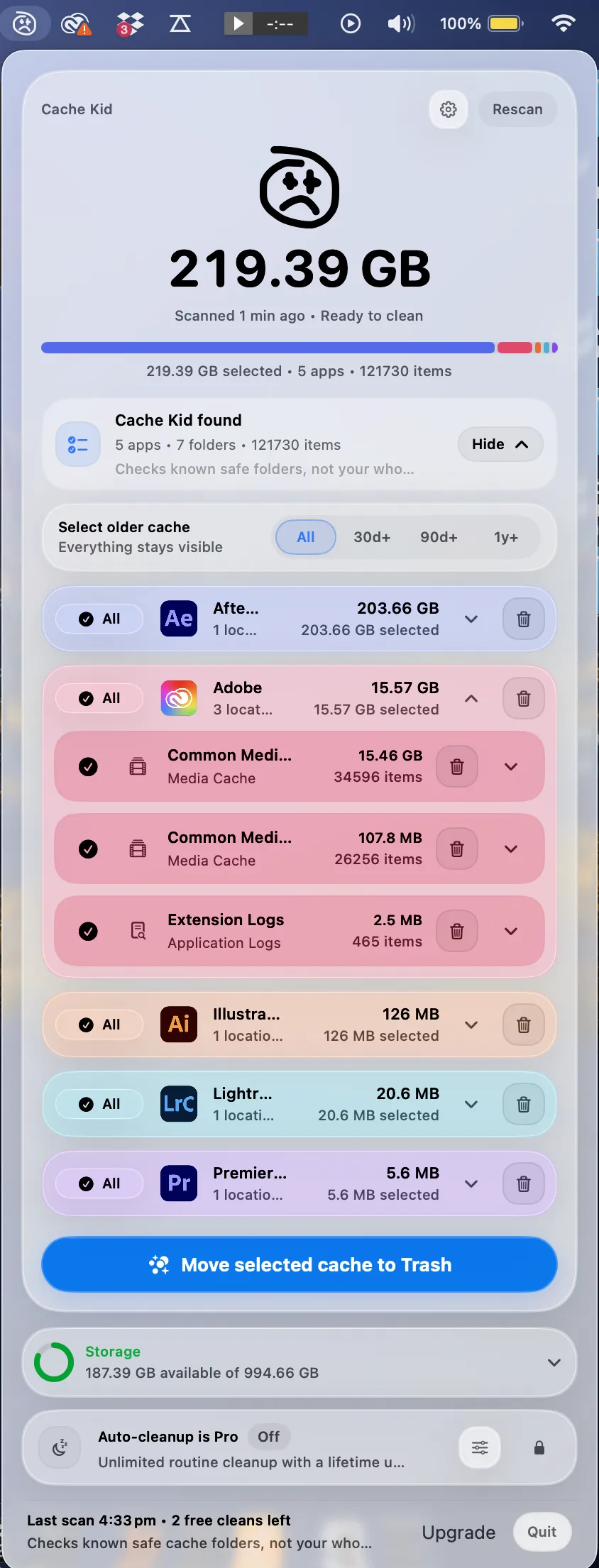
Scan, review sizes and paths, then clear only what you choose from the menu bar.
Scans are free. Upgrade only when you are ready to clear more.
Frequently asked questions
- Where does Adobe store cache on Mac?
- Adobe apps typically use folders under your user Library for media cache, preview files, logs, and temporary data. Exact paths vary by app. Cache Kid scans known Adobe creative cache locations rather than requiring you to hunt manually.
- Will clearing Adobe cache affect all my Creative Cloud apps?
- Shared media cache can affect multiple Adobe apps. Individual apps also keep their own cache. Cache Kid lets you review what was found before selecting what to clear.
- Is Adobe cache safe to delete?
- Cache files are generally rebuildable. Apps may take time to regenerate previews and thumbnails. Close Adobe apps before cleaning. Cache Kid avoids project files, libraries, and exports.
- Does Cache Kid replace Adobe's own cache settings?
- No. Cache Kid is a separate macOS utility that focuses on review-first cleanup across creative apps. Adobe apps still have their own preferences for cache location and management.