
Mac Storage
Top Mac cleaning apps for creatives in 2026
Published June 20, 2026, updated June 20, 2026
Quick answer
Creatives usually need different tools for different jobs: disk visualizers to find space hogs, general cleaners for whole-Mac maintenance, and focused apps like Cache Kid for Adobe, Resolve, and other creative cache review before Trash.
Most Mac cleaner roundups miss the thing that actually hurts creative work: cache that keeps growing after the job is done. Photoshop wants scratch disk space. Premiere and After Effects share Adobe cache. Resolve can leave heavy CacheClip folders behind. Final Cut Pro libraries collect generated files. Then a 512 GB Mac starts acting like a shoebox.
General Mac cleaners can still help. They are just not all solving the same problem.
Quick fix: open System Settings > General > Storage, empty Trash, then decide what you are really trying to fix: finding large folders, broad Mac maintenance, duplicates, old app leftovers, or creative cache.
Start with the problem, not the app
If you do not know where the space went, use a visual disk tool first. If your whole Mac feels neglected, a general maintenance app can make sense. If your exports folder is a mess, a duplicate finder might help.
But if the warning showed up while editing, rendering, exporting, or opening a huge PSD, look at creative cache before you start deleting random Library folders.
- Photoshop scratch disk full: free real disk space first, then check Photoshop > Settings > Scratch Disks. Adobe's scratch disk guidance now expects a serious free-space buffer for heavy files.
- Premiere Pro media cache: use Settings > Media Cache before manual cleanup. Adobe also documents the shared macOS cache path at
~/Library/Application Support/Adobe/Common. - After Effects disk cache: purge inside After Effects when you can, then check shared Adobe cache if storage still looks wrong.
- Final Cut Pro libraries: use File > Delete Generated Library Files instead of digging through library package contents.
- DaVinci Resolve cache: check Playback > Delete Render Cache and Project Settings > Master Settings > Working Folders.
Quick comparison
| Tool | Best when | Creative cache fit |
|---|---|---|
| Cache Kid | Adobe, Resolve, and other creative cache are taking space | Strong fit. Shows known creative cache paths and sizes before Trash |
| CleanMyMac | You want broad Mac cleanup and maintenance in one app | Useful for general cleanup, but not built around editor cache |
| DaisyDisk | You need to see where the space went | Great discovery tool. Cleanup is still manual |
| Sensei | You want performance monitoring with some cleanup | Better for system insight than creative-cache review |
| App Cleaner & Uninstaller | You are removing old apps and leftovers | Helpful for app debris, not active editing cache |
| Gemini 2 | You have duplicate exports, downloads, or photos | Good for duplicates, not scratch disks or render cache |
| OnyX | You are comfortable with manual macOS maintenance | Powerful, free, and not beginner-friendly |
| GrandPerspective | You want a simple treemap of disk usage | Good for discovery, not automated cleanup |
Pricing and features change. Check each developer's official store page before buying.
Where Cache Kid fits
Cache Kid is for the moment when you know cache is the problem, but you do not want to spelunk through hidden folders while a project is already late.
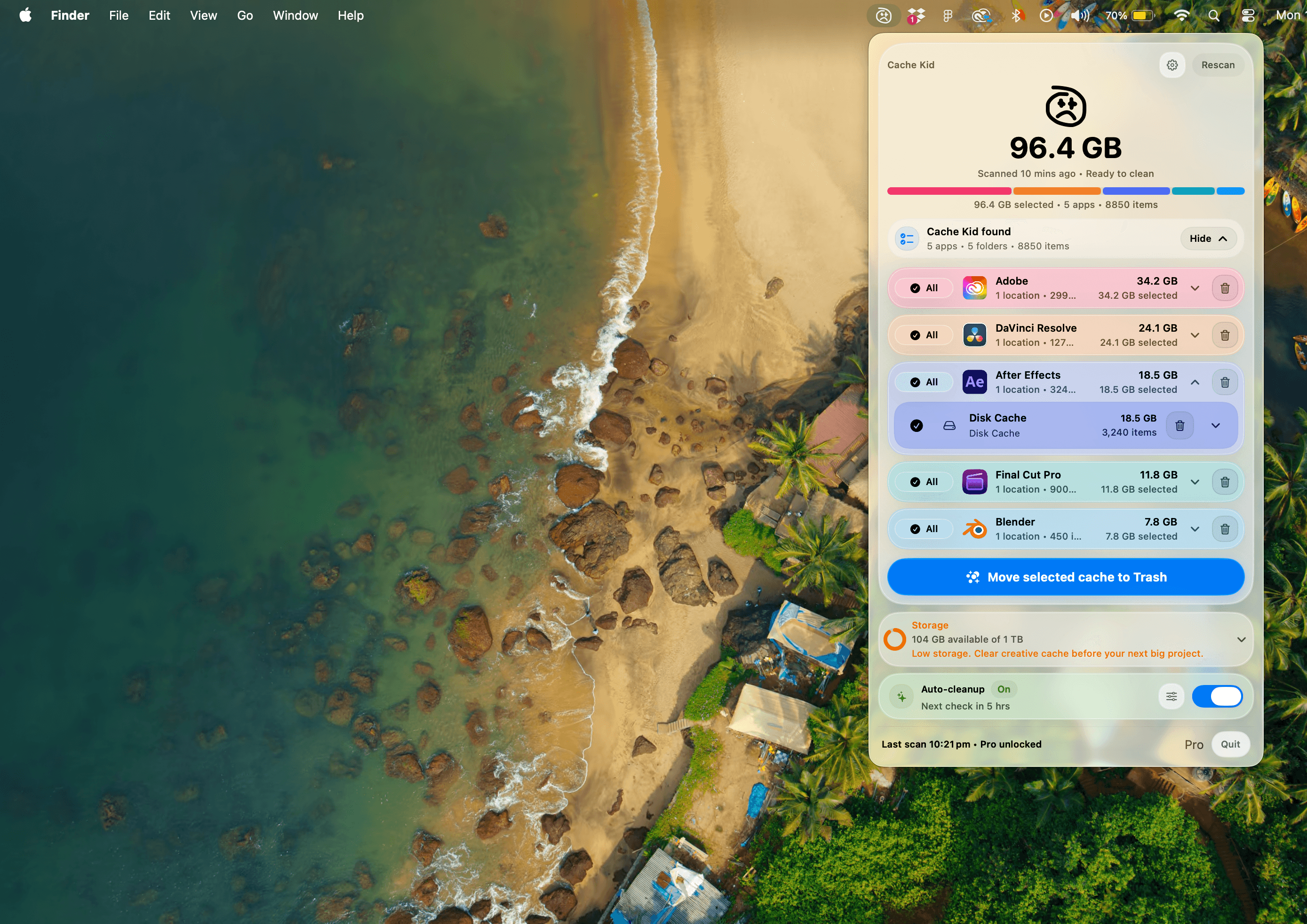
It scans known creative app cache locations, shows the paths and sizes it found, and moves only selected items to Trash. That review step matters. Creative cache is often rebuildable, but project files, source media, exports, catalogs, presets, and libraries are not the place to guess.
Use Cache Kid when:
- Adobe Common has become huge after Premiere, After Effects, or Media Encoder work
- Resolve cache or optimized media has grown across old projects
- You want to review cache sizes before emptying Trash
- You would rather use a focused tool than manually browse
~/Library - You already used the app's own cache controls and still need a clearer view
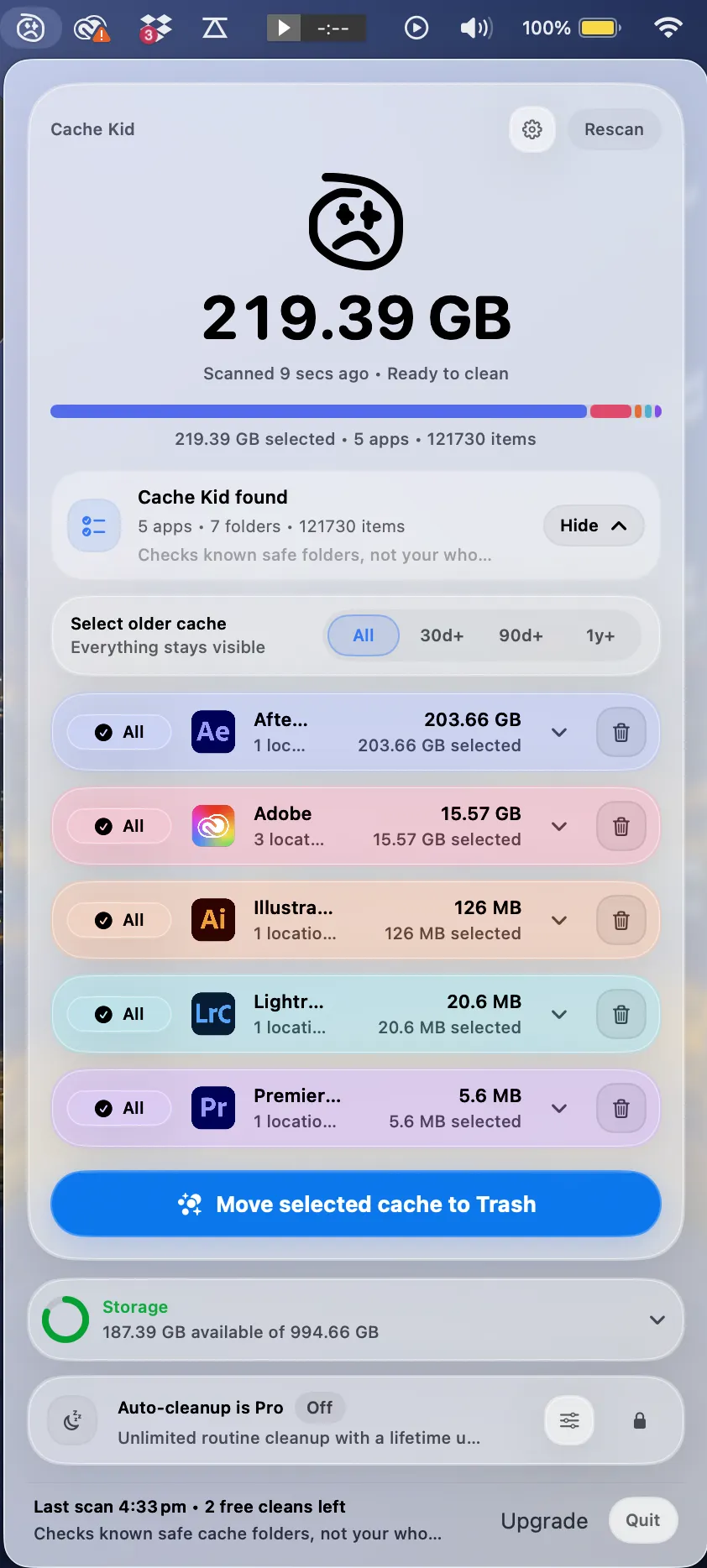
It is intentionally narrow. That is the point. A lot of cleaners try to cover everything on the Mac. Cache Kid is built around the cleanup creative users actually come back to after every big delivery week.
What Cache Kid will not replace
Cache Kid is not trying to be your only Mac utility.
- Use DaisyDisk or GrandPerspective when you need to find an unknown space hog.
- Use CleanMyMac or Sensei when you want broader Mac maintenance.
- Use Gemini 2 when repeated exports, downloads, or photo rounds created duplicates.
- Use App Cleaner & Uninstaller when you are removing old apps and their support files.
- Use Final Cut Pro, Premiere Pro, After Effects, and Resolve built-in cache controls when the app gives you a safe first-party cleanup path.
The best setup is often boring: find the space, clean the obvious stuff, then use the focused tool for the risky-looking creative cache layer.
If you only have five minutes
- Empty Trash first. Deleted files do not free space until you do.
- Check System Settings > General > Storage so you know the biggest category.
- If the biggest problem is mystery folders, scan with DaisyDisk or GrandPerspective.
- If the problem is Adobe, Resolve, or creative app cache, scan with Cache Kid.
- If you are inside a specific app, use that app's cache menu before manual deletion.
- Do not delete source media, project files, catalogs, libraries, presets, or exports you still need.
No cleaner should make you feel rushed. The good ones help you understand what is taking space before you commit.
Bottom line
For general Mac maintenance, choose a general Mac cleaner. For visual discovery, choose a disk map. For duplicates, use a duplicate finder.
For creative cache, especially Adobe and Resolve cache that keeps coming back after real work, Cache Kid is the more focused choice. It shows you what it found, lets you choose what moves to Trash, and keeps the cleanup centered on rebuildable creative app cache instead of broad guesses.
CleanMyMac, DaisyDisk, Gemini, Sensei, App Cleaner & Uninstaller, OnyX, GrandPerspective, Adobe, Apple Final Cut Pro, and DaVinci Resolve are trademarks of their respective owners. Cache Kid is not affiliated with or endorsed by them.
Last verified with official product pages and creative app documentation in June 2026.
Related guide
Clear Adobe Creative Cloud Cache on Mac
Want the full cleanup walkthrough? This guide explains where the cache lives and what is safe to review before moving anything to Trash.

Review before you clear
Try Cache Kid for Adobe cache
Cache Kid is a macOS menu bar app that scans known Adobe cache folders, shows you what it found, and moves only what you select to Trash. Scans are free. Nothing is permanently deleted until you empty Trash yourself.
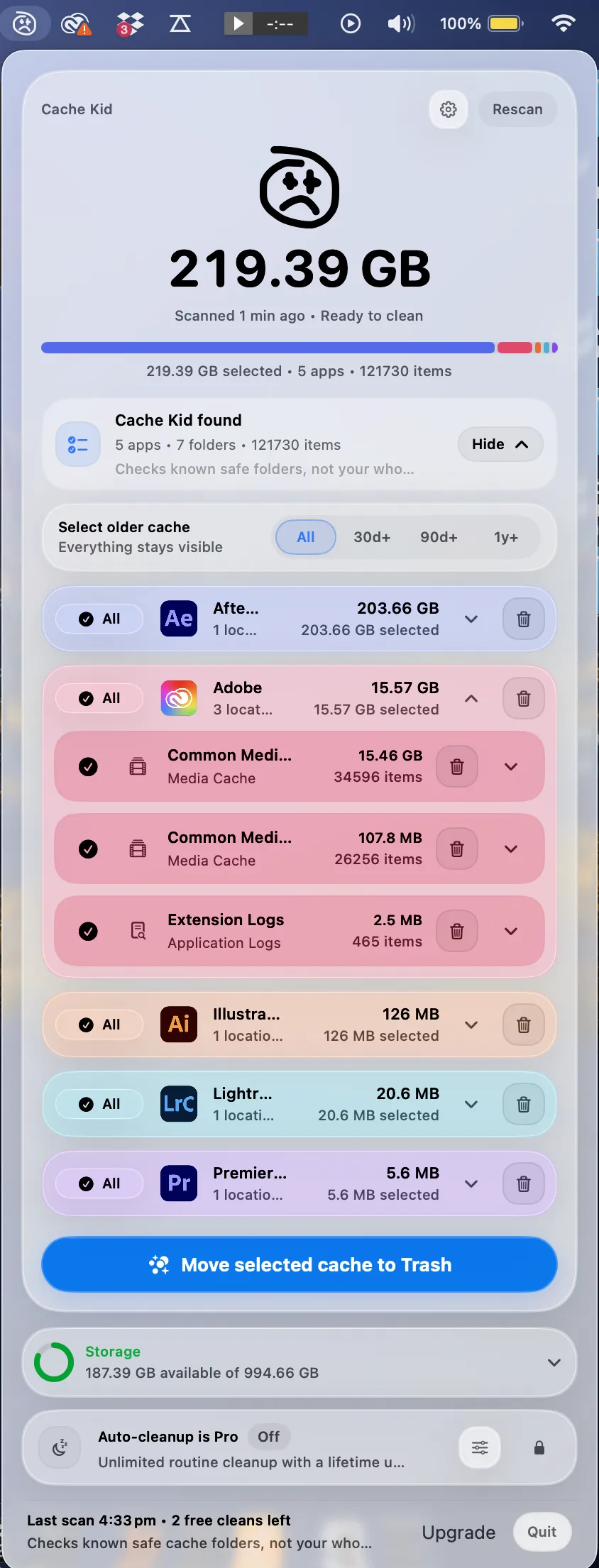
Scan, review sizes and paths, then clear only what you choose from the menu bar.
Scans are free. Upgrade only when you are ready to clear more.
Frequently asked questions
- What is the best Mac cleaner for video editors?
- It depends on the problem. DaisyDisk or GrandPerspective help find large folders. CleanMyMac or Sensei handle broader maintenance. Cache Kid is a better fit when Premiere, After Effects, Resolve, or shared Adobe cache is the main storage issue.
- Can Cache Kid replace CleanMyMac?
- No. CleanMyMac is built for broad Mac cleanup and maintenance. Cache Kid focuses on review-first creative app cache cleanup and is not a whole-Mac junk remover or disk visualizer.
- Is it safe to use Mac cleaning apps on a creative workstation?
- Yes, if you use reputable apps, review what will be deleted, and avoid removing project files, source media, exports, catalogs, or libraries. Creative cache is often rebuildable, but project data is not.
- Do I still need in-app cache controls if I use a Mac cleaner?
- Usually yes. Photoshop scratch disk settings, Premiere media cache controls, After Effects purge commands, Final Cut generated file deletion, and Resolve Playback cache menus are still the safest first step for app-specific cleanup.
More posts
Adobe
Adobe Common Folder Huge on Mac
Learn why the Adobe Common folder can grow so large on Mac and how to review media cache without deleting projects.
June 20, 2026
Mac Storage
Why Is Mac Storage Still Full After Deleting Files?
Troubleshoot why free space does not return after deleting files on Mac, from Trash and snapshots to hidden creative cache.
June 13, 2026
Safety
What Cache Files Are Safe to Delete on Mac?
A creative-friendly guide to which Mac cache files are usually safe to review and which project files you should leave alone.
June 6, 2026