
Premiere Pro
Premiere Pro out of memory and media cache on Mac
Published May 2, 2026, updated May 2, 2026
Quick answer
Force quit Premiere if macOS is warning about application memory, restart if needed, then free disk space and clear Premiere media cache. Cache Kid helps review Premiere and Adobe cache folders before rebuildable files move to Trash.
If Premiere Pro triggers “Your system has run out of application memory” on Mac, get the project stable first: save if you can, force quit if you have to, restart, then check storage and media cache. Clearing cache helps when disk pressure is part of the problem, but it will not fix every runaway plugin, memory leak, or timeline that is simply too heavy.
Quick fix: force quit Premiere if it is stuck, restart your Mac, free startup disk space, then clear Premiere Pro media cache from Settings > Media Cache.
Why Premiere can hit the macOS memory warning
The macOS alert appears when the system is under serious memory pressure. In Premiere, that can come from a long timeline, heavy effects, bad plugins, large exports, dynamic links, or not enough free disk space for swap.
Your sequence is not deleted when this happens. macOS is asking you to quit apps before the whole machine becomes unusable.
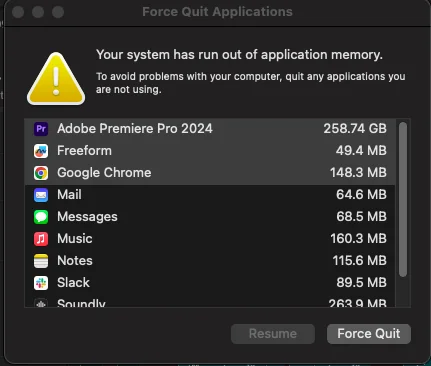
What to do first
- Save the project if Premiere is still responding
- Force quit Premiere if it is frozen
- Restart your Mac before reopening the same timeline
- Check System Settings > General > Storage
- Clear media cache before opening a heavy project again
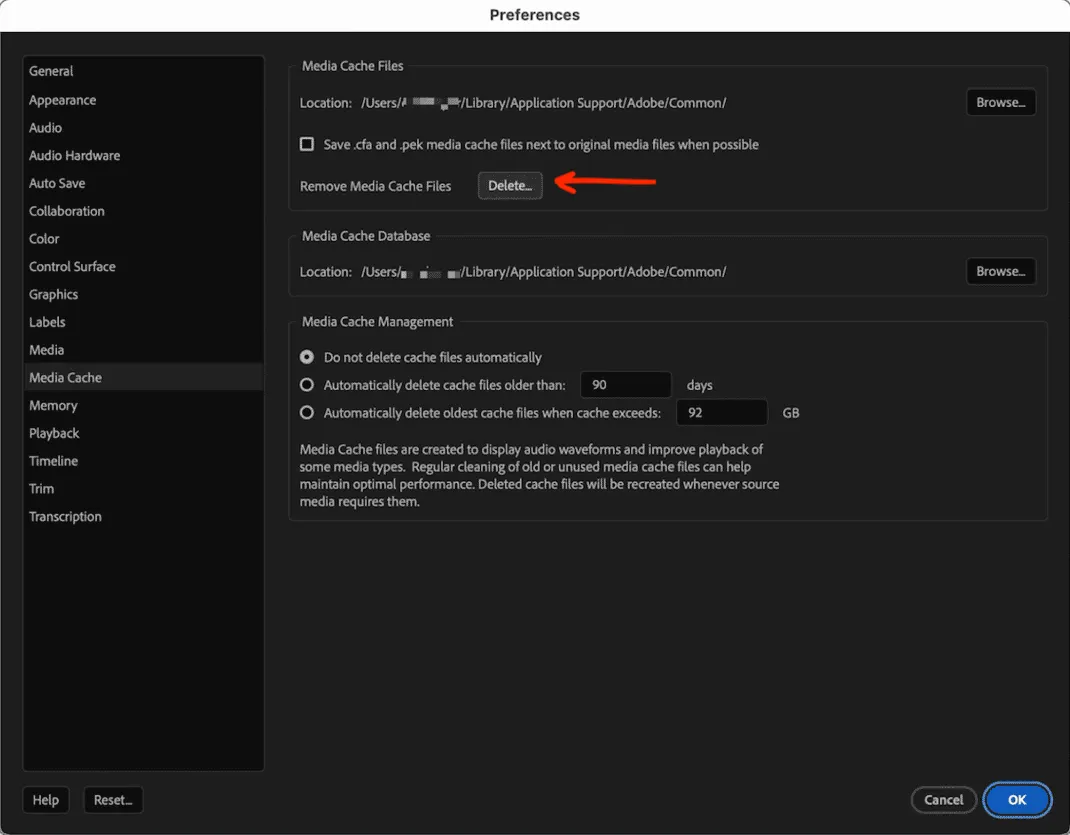
Clear Premiere Pro media cache
In Premiere Pro, open Settings > Media Cache and use Delete to remove media cache files. Adobe's current Premiere media cache guidance also confirms the manual macOS location as ~/Library/Application Support/Adobe/Common when Premiere is closed.
Premiere cache includes files like conformed audio and peak files. It is meant to be rebuilt, but big projects may take time to reconform the next time you open them.
Set cache to stop growing forever
Premiere can automatically delete older cache files or delete cache when it passes a size limit. Set this up in Settings > Media Cache if you edit every week. It is one of those boring settings that saves you at the worst possible time.
Shared Adobe cache matters too. Premiere Pro, After Effects, and Media Encoder can all add to Adobe Common, so a Premiere problem is not always isolated to one app.
Review Adobe cache with Cache Kid
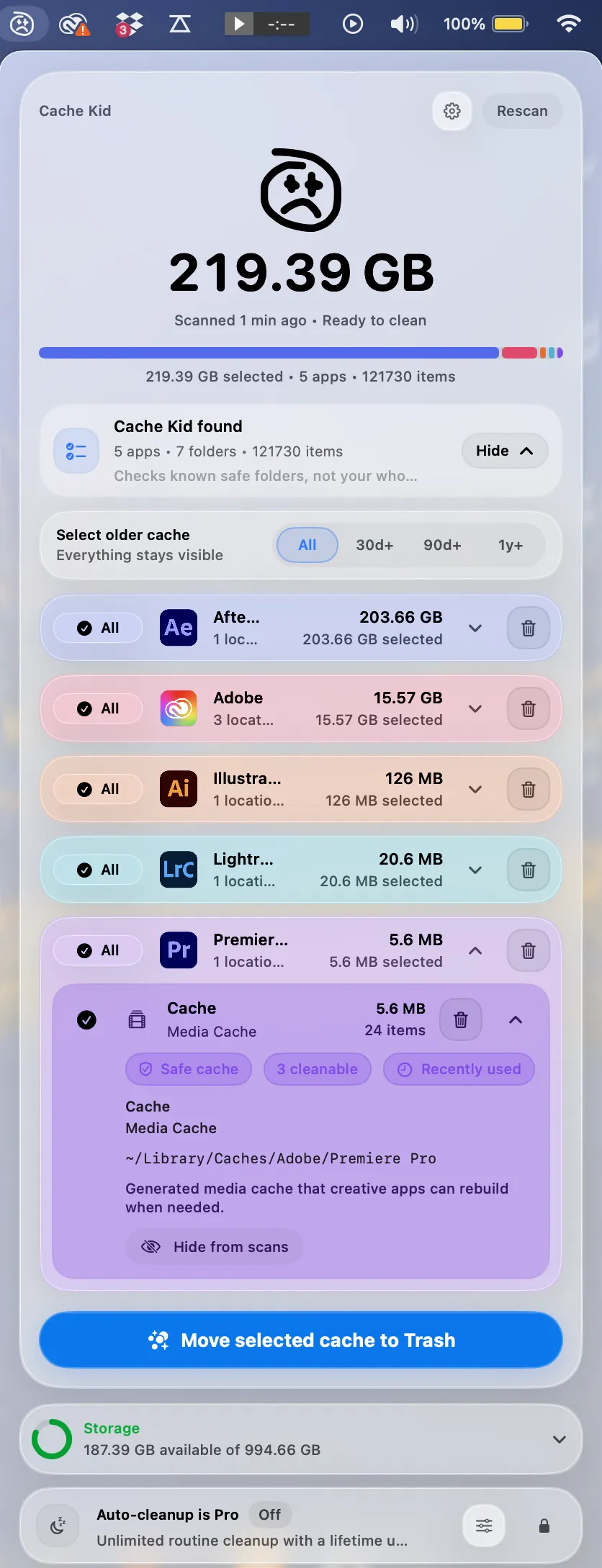
If you want to see Adobe cache sizes before moving anything, Cache Kid scans known Premiere and Adobe cache locations and shows what it found. You choose what goes to Trash.
This is useful when you know the cache is huge but do not want to dig through hidden Library folders while a deadline is already sideways.
What Cache Kid will not fix
Cache Kid will not fix a Premiere memory leak, broken plugin, corrupt project, or underpowered Mac. If Premiere keeps climbing to huge memory numbers after cleanup, update Premiere, disable heavy effects, try proxies, and restart before opening the project again.
Prevent the warning coming back
- Set Premiere media cache to auto-delete by age or size
- Keep real free space on your startup disk for swap and exports
- Close After Effects, Media Encoder, and browser tabs before export
- Use proxies for heavy codecs, multicam, or long 4K and 6K timelines
- Review creative cache after major projects are delivered
Last verified with macOS 15 and Adobe Premiere Pro media cache guidance updated in 2026.
Related guide
Clear Premiere Pro Cache on Mac
Want the full cleanup walkthrough? This guide explains where the cache lives and what is safe to review before moving anything to Trash.

Review before you clear
Try Cache Kid for Premiere Pro cache
Cache Kid is a macOS menu bar app that scans known Premiere Pro cache folders, shows you what it found, and moves only what you select to Trash. Scans are free. Nothing is permanently deleted until you empty Trash yourself.
Scan, review sizes and paths, then clear only what you choose from the menu bar.
Scans are free. Upgrade only when you are ready to clear more.
Frequently asked questions
- Does clearing Premiere media cache fix every out-of-memory warning?
- No. It can help when disk space is tight, but a true memory leak or heavy project may still need a restart, update, proxy workflow, or fewer effects.
- Will clearing Premiere cache delete my timeline?
- No. Premiere project files and source media are separate from cache. Cache files can usually be rebuilt, although previews may take time to regenerate.
- Where is Premiere media cache on Mac?
- Adobe lists the common macOS media cache location as your user Library under Application Support/Adobe/Common. Premiere settings also let you inspect or change the media cache location.
More posts
Adobe
Adobe Common Folder Huge on Mac
Learn why the Adobe Common folder can grow so large on Mac and how to review media cache without deleting projects.
June 20, 2026

Mac Storage
Top Mac Cleaning Apps for Creatives in 2026
Compare general Mac cleaners and focused creative cache tools for Photoshop, Premiere Pro, After Effects, Resolve, and Final Cut Pro workflows.
June 20, 2026
Mac Storage
Why Is Mac Storage Still Full After Deleting Files?
Troubleshoot why free space does not return after deleting files on Mac, from Trash and snapshots to hidden creative cache.
June 13, 2026