
DaVinci Resolve
Clear DaVinci Resolve cache on Mac

Quick answer
Quit DaVinci Resolve, delete render cache from Playback menu or Preferences, then review Resolve cache folders with Cache Kid if storage is still tight. Your project database and source footage are not cache.
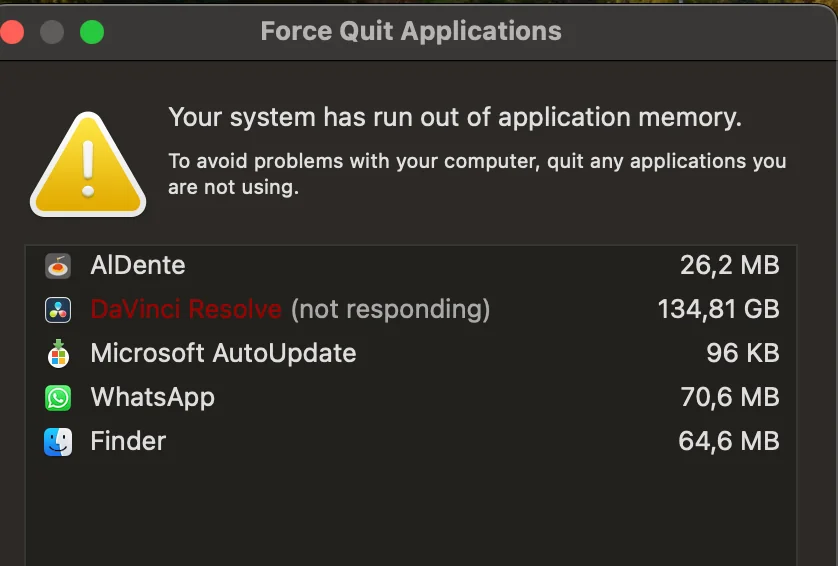
DaVinci Resolve creates render cache, optimized media, gallery stills, and other temporary files to keep editing and color grading responsive. On large timelines, Resolve cache can consume significant storage. Clearing DaVinci Resolve cache on Mac is generally safe because Resolve can rebuild cache. Close Resolve first and leave your project database and source footage alone.
Where DaVinci Resolve cache lives on Mac
Resolve stores working files in several categories:
- Render cache: cached nodes and playback data for the timeline
- Optimized media: transcoded copies Resolve creates for smoother editing
- Gallery stills and cache: saved grades and thumbnail data
These typically live under your user Library or in Resolve's configured cache location. Paths can vary by Resolve version and your cache settings.
Cache Kid scans known Resolve cache folders so you do not have to navigate Library directories manually.
Resolve's built-in cache management
DaVinci Resolve includes cache controls in its preferences. You can set cache location and clear certain cache types from within the app. Cache Kid complements this by offering review-first cleanup across Resolve and other creative apps from one menu bar utility.
Before you clean
- Quit DaVinci Resolve completely
- Review what Cache Kid found. Cache and optimized media are rebuildable; projects are not
- Allow time for Resolve to regenerate cache on next launch
Manual cleanup vs Cache Kid
| Aspect | Manual cleanup | Cache Kid |
|---|---|---|
| Cache types | Resolve has render cache, optimized media, and gallery stills in different places | Scans known Resolve cache and temporary folders together |
| Review before delete | Resolve has built-in cache management but less granular control | See individual cache items before moving to Trash |
| Optimized media | Easy to confuse with source media if you delete manually | Targets cache folders; avoids projects and source media |
| Recovery | Direct deletion is harder to undo | Trash-first workflow with restore option |
Review before you clear
Try Cache Kid for DaVinci Resolve cache
Cache Kid is a macOS menu bar app that scans known DaVinci Resolve cache folders, shows you what it found, and moves only what you select to Trash. Scans are free. Nothing is permanently deleted until you empty Trash yourself.
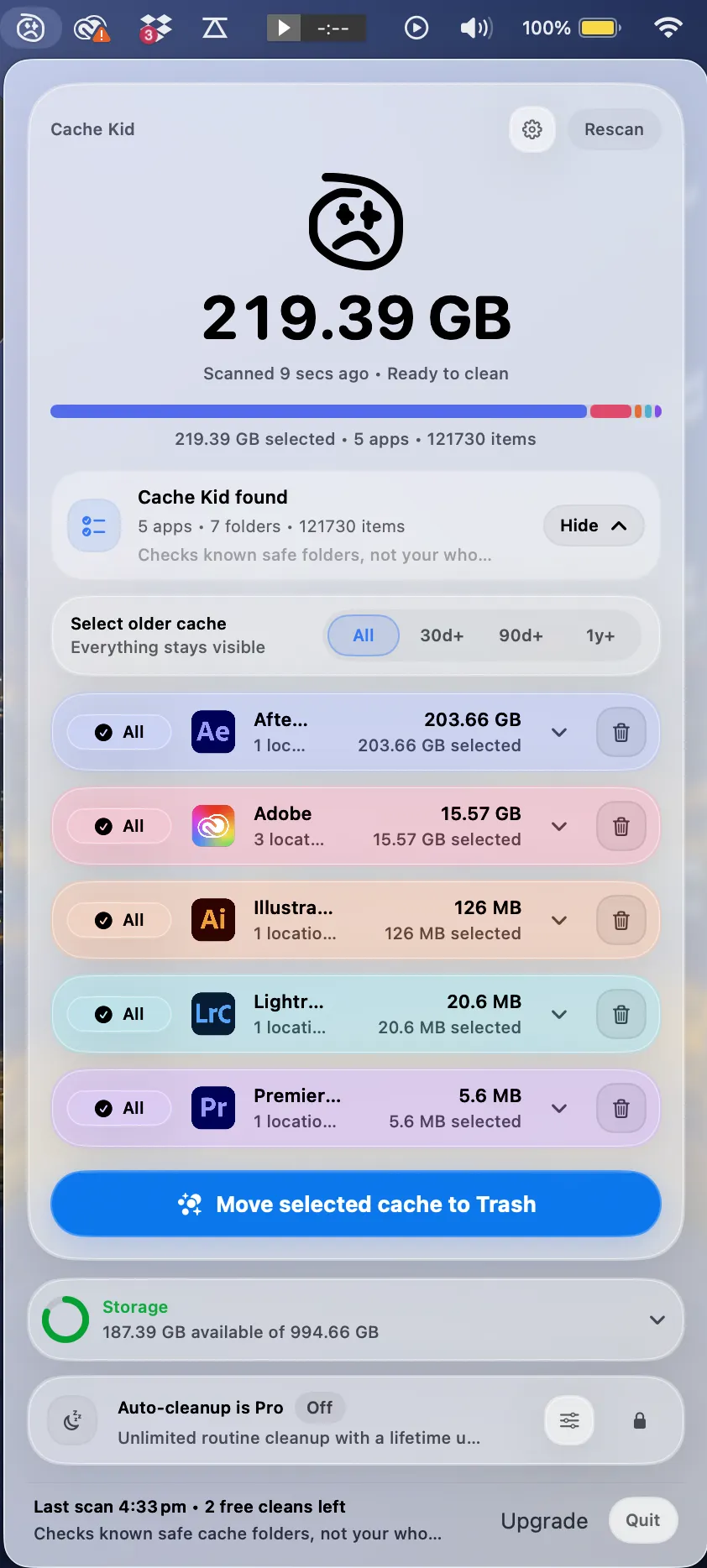
Scan, review sizes and paths, then clear only what you choose from the menu bar.
Scans are free. Upgrade only when you are ready to clear more.
Frequently asked questions
- What does DaVinci Resolve cache include?
- Resolve generates render cache, optimized media, gallery stills, and other temporary files to speed up editing and color work. These files can be rebuilt but may take time to regenerate on large timelines.
- Is it safe to clear DaVinci Resolve cache?
- Generally yes for cache and optimized media that Resolve can rebuild. Close Resolve before cleaning. Your project database and source footage are not cache.
- Does Resolve have its own cache clearing?
- Yes. Resolve includes cache management in its preferences. Cache Kid complements this by letting you review creative app cache across multiple tools from one menu bar utility.
- Will clearing Resolve cache delete my color grades?
- No. Grades live in your Resolve project. Clearing cache may mean Resolve re-renders previews or re-generates optimized media, but your grading decisions remain in the project.