
Safety
Is it safe to delete cache on Mac for creative apps?
Published May 30, 2026, updated May 30, 2026
Quick answer
Creative app cache is usually safe to clear when you can identify it and the related app is closed. Do not delete projects, source media, exports, catalogs, libraries, or unknown folders you cannot explain.
Yes, it is usually safe to delete creative app cache on Mac when you can identify it and the related app is closed. The risky part is not cache cleanup itself. The risky part is guessing your way through Library folders and deleting work files that only look technical.
Quick fix: close the related app, clear only folders you can identify as cache, and move selected items to Trash before emptying it.
Cache is working data, not your project
Creative app cache is temporary working data generated while you edit, design, grade, animate, preview, or export. It helps apps avoid rebuilding the same previews from scratch every time.
That is why cache can be useful during an active job and annoying after delivery. A folder that saved you time during the edit can sit there for months after the client has already posted the final.
Usually safe to review
- Premiere Pro media cache and preview files
- After Effects disk cache and shared Adobe media cache
- DaVinci Resolve render cache, proxy media, and optimized media
- Final Cut Pro generated render files through Final Cut's own menu
- Thumbnails, waveforms, logs, and temporary app cache
Do not delete these casually
- Project files such as
.prproj,.aep,.drp, and.fcpxbundle - Source footage, audio, photos, fonts, and client assets
- Exports, finals, and deliverables
- Lightroom catalogs, Capture One catalogs, and Final Cut libraries
- Unknown folders you cannot explain to another editor
Why review-first matters
Apple's developer docs describe app cache as data that can be regenerated, but real creative workflows are messy. Some apps and plugins store important support data in places that look similar to cache folders.
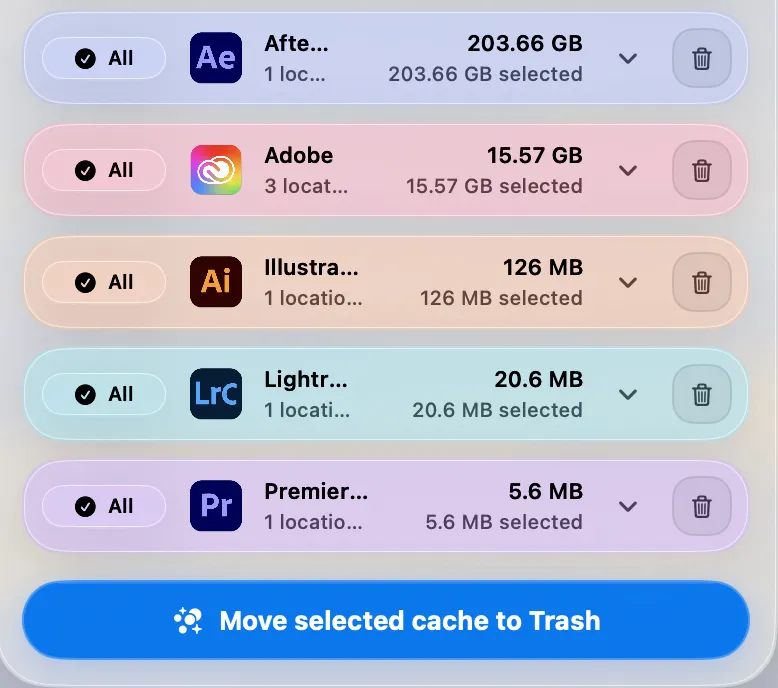
Cache Kid is built around review first because “cache” is not a magic word that makes every file safe. The app scans known creative cache folders, shows what it found, and moves only selected items to Trash.
Trash gives you a recovery window. Nothing is permanently gone until you empty it yourself.
Close apps before cleaning
Close the related creative apps before moving cache. This avoids touching files while an app is reading, writing, exporting, or rebuilding them.
Cache Kid also blocks cleanup when related creative apps are running, which helps reduce the chance of moving cache at the wrong time.
What happens after cache is cleared
Apps may feel slower for a short time because they need to rebuild previews, thumbnails, waveforms, or render cache. That is normal and does not mean your project was damaged.
The storage win is often worth it after a project is finished, especially on smaller internal SSDs. During an active deadline, be more conservative and use the app's own cleanup tools first.
Related cleanup guides
- What cache files are safe to delete on Mac?
- Clear Adobe Creative Cloud cache
- Clear Premiere Pro cache
- Clear DaVinci Resolve cache
Last verified with current Adobe, Apple, and Resolve cache workflows on macOS 15.
Related guide
Clear Adobe Creative Cloud Cache on Mac
Want the full cleanup walkthrough? This guide explains where the cache lives and what is safe to review before moving anything to Trash.

Review before you clear
Try Cache Kid for Adobe cache
Cache Kid is a macOS menu bar app that scans known Adobe cache folders, shows you what it found, and moves only what you select to Trash. Scans are free. Nothing is permanently deleted until you empty Trash yourself.
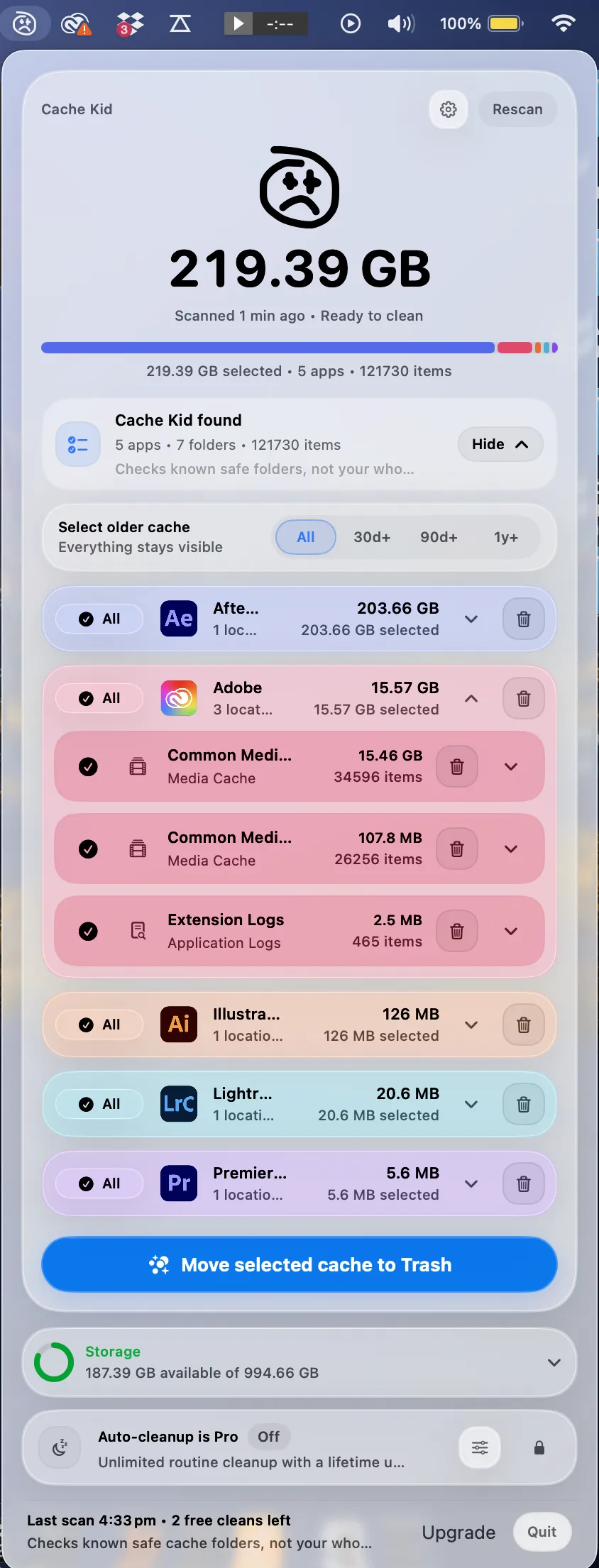
Scan, review sizes and paths, then clear only what you choose from the menu bar.
Scans are free. Upgrade only when you are ready to clear more.
Frequently asked questions
- What creative app cache is usually rebuildable?
- Preview files, render cache, media cache, waveforms, thumbnails, logs, and temporary files are usually rebuildable. Apps may take time to regenerate them.
- What should I not delete?
- Do not delete project files, source footage, exports, documents, Lightroom catalogs, Final Cut libraries, Resolve project databases, or anything you cannot confidently explain.
- Why does Cache Kid move items to Trash?
- Trash gives you a review window. Selected cache is not permanently removed until you empty Trash, so you can restore something if needed.
More posts
Adobe
Adobe Common Folder Huge on Mac
Learn why the Adobe Common folder can grow so large on Mac and how to review media cache without deleting projects.
June 20, 2026
Mac Storage
Top Mac Cleaning Apps for Creatives in 2026
Compare general Mac cleaners and focused creative cache tools for Photoshop, Premiere Pro, After Effects, Resolve, and Final Cut Pro workflows.
June 20, 2026
Mac Storage
Why Is Mac Storage Still Full After Deleting Files?
Troubleshoot why free space does not return after deleting files on Mac, from Trash and snapshots to hidden creative cache.
June 13, 2026