
Mac Storage
Why is Mac storage still full after deleting files?
Published June 13, 2026, updated June 13, 2026
Quick answer
If Mac storage is still full after deleting files, check Trash, storage reporting, local snapshots, Downloads, device backups, large app support folders, and creative app cache. Deleted files do not free space until Trash is emptied.
If Mac storage is still full after deleting files, the files may still be in Trash, macOS may not have refreshed its storage count, or the space may be held by local snapshots, hidden app support folders, creative cache, iPhone backups, or cloud-sync files.
Quick fix: empty Trash, restart your Mac, check System Settings > General > Storage, then review hidden creative app cache and Time Machine snapshots.
Deleted files may still be in Trash
Moving files to Trash does not free space until you empty Trash. This is the first check because it is simple and it catches a lot of “I swear I deleted it” moments.
If you deleted large video exports, old installers, screen recordings, or project archives, they may still be sitting in Trash using the same disk space.
macOS storage numbers can lag
Sometimes Finder and System Settings take time to refresh storage numbers. Restarting can clear temporary pressure, refresh reporting, and remove old swap files from the current session.
Apple's Mac storage guidance also notes that starting in safe mode can clear certain system caches when you need temporary room for a task like a macOS update.
System Data is not one folder
System Data can include caches, logs, virtual memory files, temporary files, app support files, fonts, plug-ins, and other files that do not fit cleanly into the visible categories. You cannot open System Data and delete it like a normal folder.
That is why the useful question is not “How do I delete System Data?” It is “Which real folders are contributing to it, and are they safe to touch?”
Time Machine snapshots can hold space
If you use Time Machine, local snapshots can make storage look confusing. Apple says Time Machine stores local snapshots on your Mac and manages them automatically as space is needed.
For most people, the safest move is to reconnect your Time Machine backup drive and let macOS catch up. Advanced users can inspect snapshots with tmutil listlocalsnapshots /, but do not run snapshot deletion commands unless you understand the backup trade-off.
Hidden creative cache can be large
Creative apps often write cache under Library or application support folders. These folders may not be obvious from the project folder you were working in.
Common examples include Adobe media cache, After Effects disk cache, Resolve render cache, proxy media, optimized media, logs, and preview files.
What to check next
- Trash
- Downloads and old disk images
- Movies, screen recordings, and export folders
- System Settings > General > Storage
- iPhone and iPad backups if you sync devices locally
- Time Machine local snapshots if you use Time Machine
- Creative app cache and render folders
Where Cache Kid helps
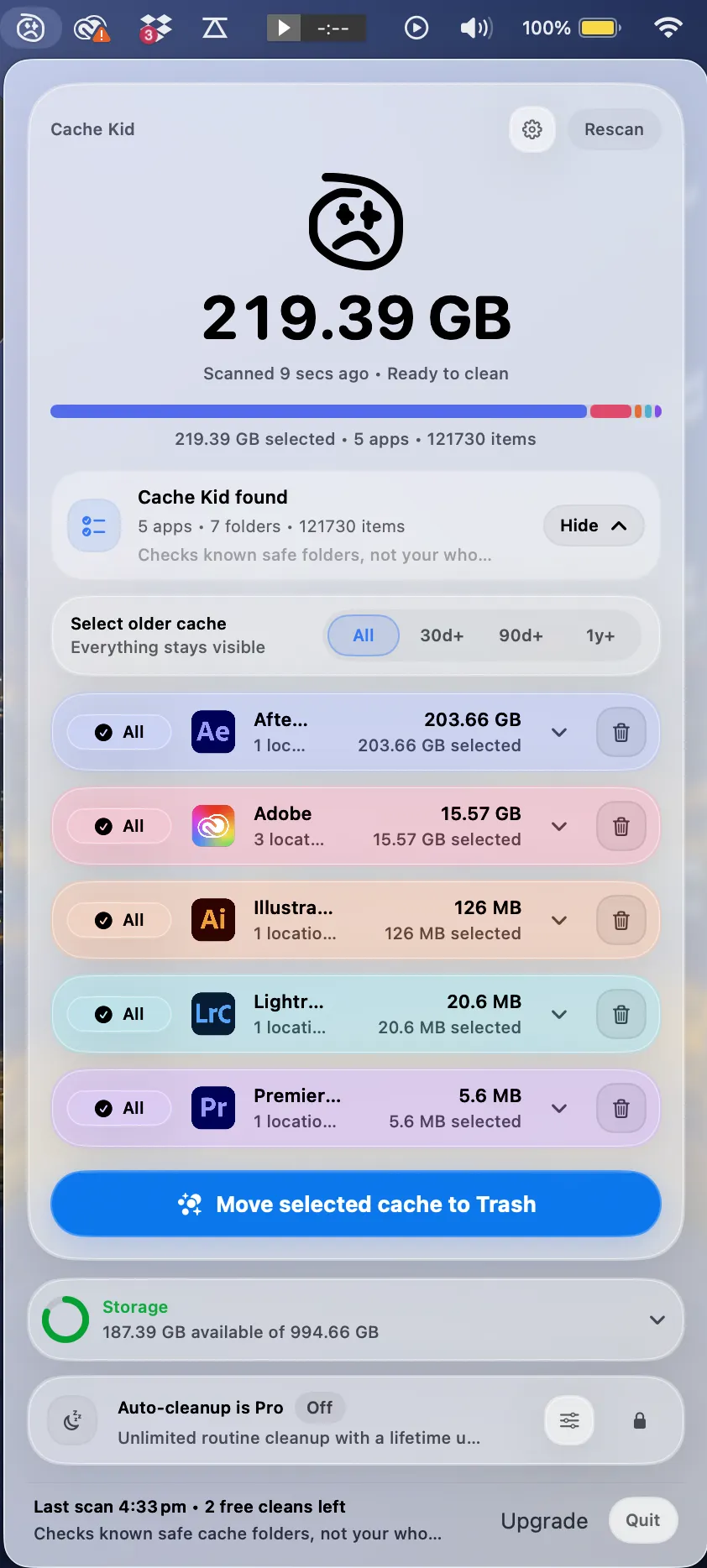
Cache Kid is useful when the hidden storage is creative cache. It scans known creative cache locations, shows what it found, and lets you move selected cache to Trash.
It is not a full disk analyzer, so use it as part of a storage checklist rather than the only step.
What Cache Kid will not fix
Cache Kid will not remove local snapshots, iPhone backups, duplicate downloads, project archives, or large exports. Those need separate review.
Last verified with Apple macOS storage and Time Machine guidance updated in 2025.
Related guide
Clear Adobe Creative Cloud Cache on Mac
Want the full cleanup walkthrough? This guide explains where the cache lives and what is safe to review before moving anything to Trash.

Review before you clear
Try Cache Kid for Adobe cache
Cache Kid is a macOS menu bar app that scans known Adobe cache folders, shows you what it found, and moves only what you select to Trash. Scans are free. Nothing is permanently deleted until you empty Trash yourself.
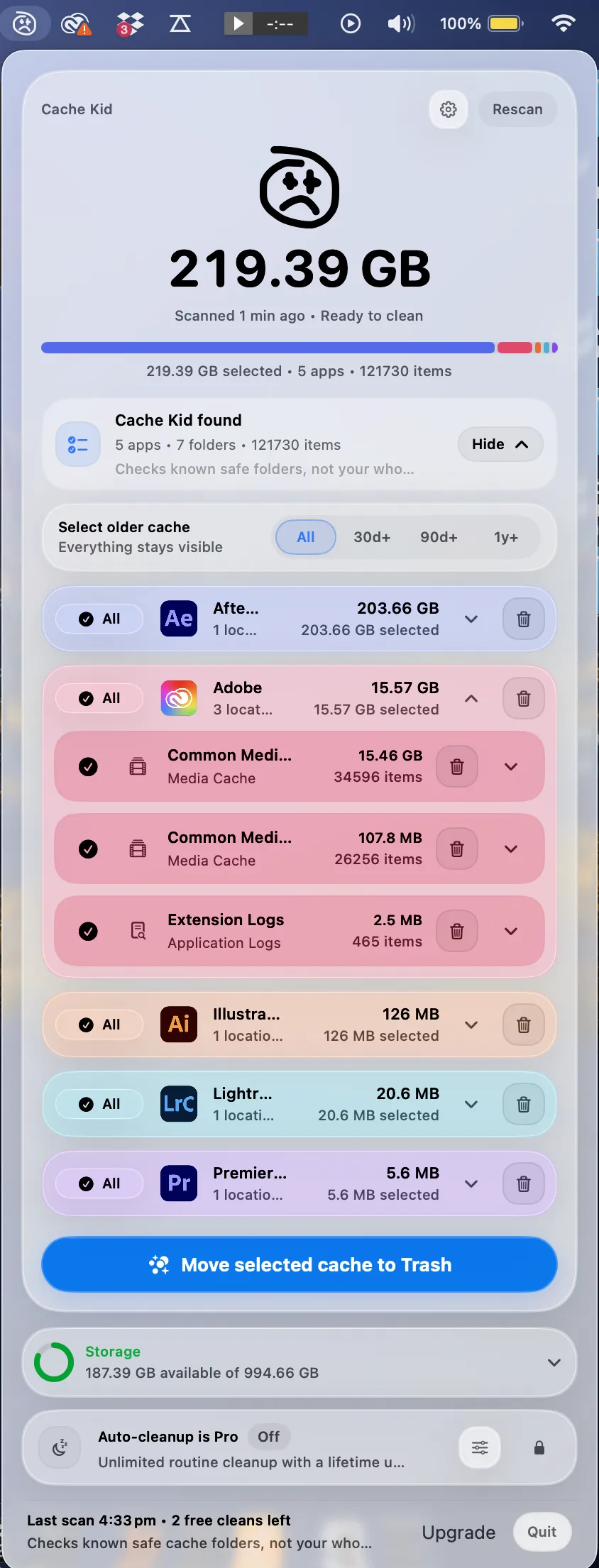
Scan, review sizes and paths, then clear only what you choose from the menu bar.
Scans are free. Upgrade only when you are ready to clear more.
Frequently asked questions
- Why did deleting files not free space on my Mac?
- The files may still be in Trash, macOS may not have refreshed storage reporting, or space may be used by snapshots, device backups, app cache, or hidden support folders.
- Can creative cache hide from normal Finder views?
- Yes. Adobe, Resolve, and other creative apps often store cache under hidden Library or application support folders, not next to your project files.
- Can Cache Kid find all hidden storage?
- No. Cache Kid is not a full disk analyzer. It focuses on known creative cache folders and custom cache folders you choose to add.
More posts
Adobe
Adobe Common Folder Huge on Mac
Learn why the Adobe Common folder can grow so large on Mac and how to review media cache without deleting projects.
June 20, 2026

Mac Storage
Top Mac Cleaning Apps for Creatives in 2026
Compare general Mac cleaners and focused creative cache tools for Photoshop, Premiere Pro, After Effects, Resolve, and Final Cut Pro workflows.
June 20, 2026
Safety
What Cache Files Are Safe to Delete on Mac?
A creative-friendly guide to which Mac cache files are usually safe to review and which project files you should leave alone.
June 6, 2026