
Premiere Pro
Clear Premiere Pro cache on Mac

Quick answer
Quit Premiere Pro, then clear media cache in app settings or review known Premiere cache folders with Cache Kid before moving rebuildable files to Trash. Your .prproj projects and source media stay untouched.
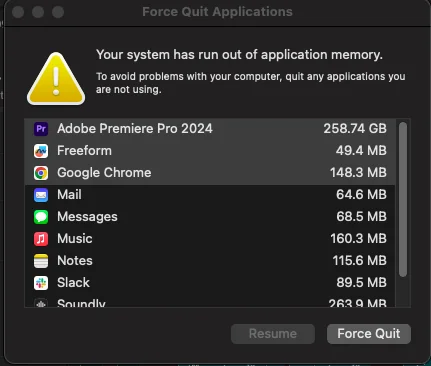
Premiere Pro builds preview files, media cache, and other temporary data while you edit. On a busy Mac, that cache can quietly consume tens of gigabytes. Clearing Premiere Pro cache on Mac is generally safe because Premiere can rebuild previews and media cache. Close Premiere first and avoid touching project files or source media.
Where Premiere Pro cache lives on Mac
Premiere Pro and Adobe apps typically store cache under your user Library folder. Common locations include:
- Media cache and preview files used to speed up playback and editing
- Temporary render and peak files generated during export and audio work
- Log and cache folders Adobe creates during normal use
Exact folder names and paths can change between Premiere versions. Cache Kid scans known Adobe and Premiere Pro cache locations so you do not have to hunt through Library folders manually.
When to clear Premiere Pro cache
Consider clearing cache when:
- Your Mac is low on storage and Premiere-related folders have grown large
- You have finished a major project and no longer need local preview files
- Premiere is behaving oddly and Adobe support suggests clearing cache
There is no required schedule. Cache Kid lets you scan for free and review sizes before deciding what to clear.
Before you clean
- Quit Premiere Pro and related Adobe apps
- Review what Cache Kid found. Cache is safe to remove; projects and media are not
- Remember that Premiere may need time to rebuild previews after cleanup
Manual cleanup vs Cache Kid
| Aspect | Manual cleanup | Cache Kid |
|---|---|---|
| Finding cache folders | Search Adobe support docs and dig through Library folders yourself | Scans known Premiere Pro cache locations automatically |
| Review before delete | Easy to remove the wrong folder if you are unsure | Shows what was found so you choose what goes to Trash |
| Project safety | Depends on knowing which folders are cache vs projects | Focuses on cache; avoids projects, media, and exports |
| Recovery | Permanent delete if you empty Trash without checking | Moves selected items to Trash so you can restore first |
Review before you clear
Try Cache Kid for Premiere Pro cache
Cache Kid is a macOS menu bar app that scans known Premiere Pro cache folders, shows you what it found, and moves only what you select to Trash. Scans are free. Nothing is permanently deleted until you empty Trash yourself.
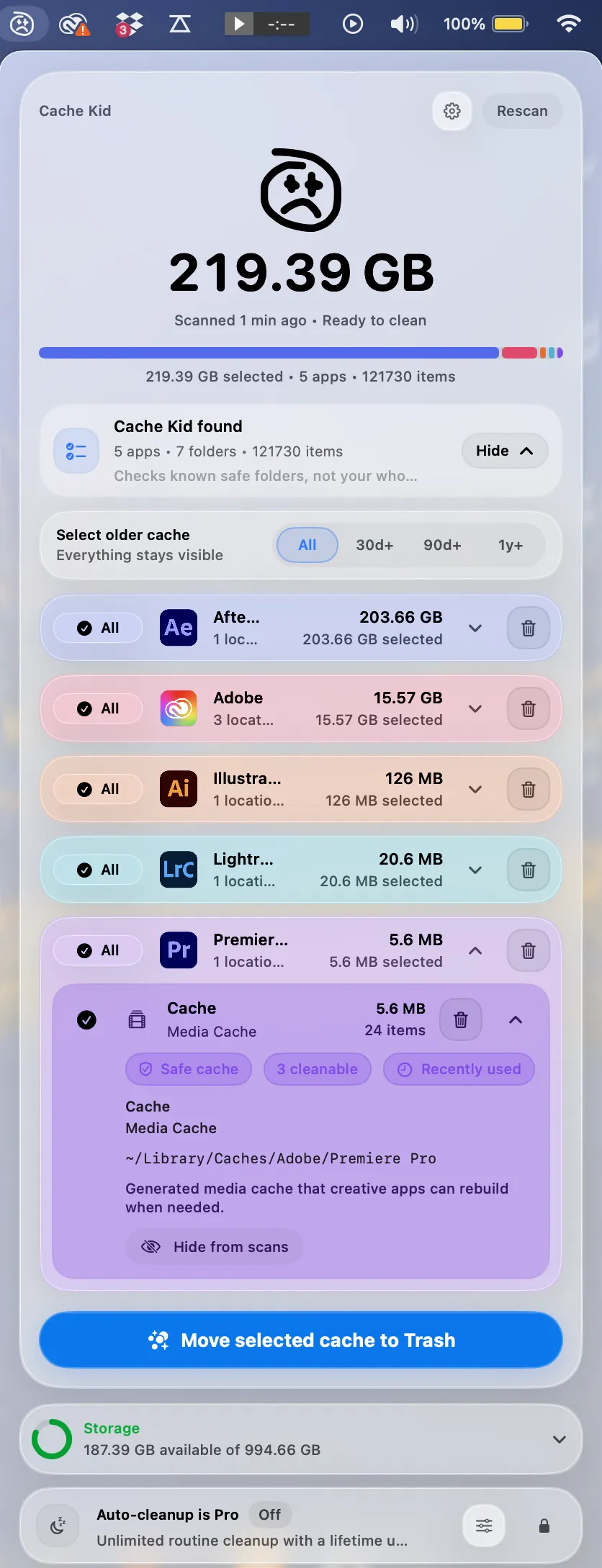
Scan, review sizes and paths, then clear only what you choose from the menu bar.
Scans are free. Upgrade only when you are ready to clear more.
Frequently asked questions
- Is it safe to clear Premiere Pro cache on Mac?
- In most cases, yes. Premiere Pro rebuilds preview files, media cache, and other temporary data over time. Clearing cache can free storage, but Premiere may need a moment to regenerate previews after cleanup. Close Premiere Pro before cleaning.
- Will clearing Premiere Pro cache delete my projects?
- Not if you only remove cache folders. Premiere project files (.prproj) and your source media live elsewhere. Cache Kid is designed to target cache and temporary files, not projects or exports.
- How often should I clear Premiere Pro cache?
- There is no fixed schedule. Many editors clear cache when storage gets tight or after large projects. Cache Kid lets you scan for free and review sizes before deciding.
- Does Cache Kid need Full Disk Access for Premiere Pro cache?
- No. Cache Kid uses the standard macOS folder picker for folders you approve, starting with your Library folder. It may ask for additional folders only when Premiere stores cache outside the usual locations.