
Mac Storage
Mac startup disk full for creatives
Published April 25, 2026, updated April 25, 2026
Quick answer
Check macOS Storage first, clear obvious large files, empty Trash, then review creative app cache before touching project folders. Cache Kid is useful when Adobe, Resolve, Final Cut Pro, and other creative caches are taking space you want to review before Trash.
If your Mac startup disk is full, do not start by deleting random folders in Library. Check Storage first, clear obvious bulky files, empty Trash, then review creative app cache from tools like Photoshop, Premiere Pro, After Effects, DaVinci Resolve, and Final Cut Pro.
Quick fix: open System Settings > General > Storage, remove obvious large files, empty Trash, then review creative cache before touching project folders.
Why creative Macs fill up so quickly
Creative apps create more than project files. They also create cache, previews, render files, optimized media, proxies, thumbnails, waveforms, logs, and scratch data.
Those files help apps run faster while you work, but they can stay on disk after a project is finished. A Mac used for editing, motion graphics, photography, or design can lose tens or hundreds of gigabytes this way. It is especially rough on 256 GB and 512 GB internal drives.
What macOS Storage can and cannot show
Apple's Mac storage settings guide points you to System Settings > General > Storage. Start there because it quickly shows obvious categories like Applications, Documents, Downloads, Trash, and TV.
The catch is System Data. Apple says System Data includes caches, logs, virtual memory files, temporary files, fonts, app support files, and plug-ins. You cannot manage that category directly from Storage settings, which is why creative cache often feels hidden.
What is safe vs risky to remove
| Type | Usually safe to review | Be careful |
|---|---|---|
| Creative cache | Preview files, render cache, media cache, logs | Apps may rebuild previews later |
| Project files | No | Premiere projects, After Effects projects, Resolve databases |
| Source media | No | Camera originals, audio files, client assets |
| Exports | Only if you have backups | Delivered videos, flattened art, finals |
| Libraries | Use the app's tools first | Final Cut libraries, Lightroom catalogs |
What to do first
- Empty Trash because files in Trash still use disk space
- Move old exports and archives to an external drive
- Remove installers, disk images, screen recordings, and duplicate downloads
- Check app-specific storage inside the creative app when available
- Review creative cache with Cache Kid before moving anything to Trash
When low storage causes memory warnings
macOS uses disk space for swap when RAM is under pressure. If the startup disk is nearly full, macOS has less room to grow swap files. That can lead to the “Your system has run out of application memory” alert, especially when a creative app is already using a lot of memory.
Clearing cache will not fix every memory leak, but it can restore the free disk space macOS and creative apps need to keep working.
Where Cache Kid helps
Cache Kid is not a whole-Mac cleaner. It focuses on creative app cache and custom cache folders you choose to add. It scans known cache locations, shows the size and path, then moves only selected items to Trash.
That makes it useful after you have checked obvious files, but before you start digging through hidden Library folders yourself.
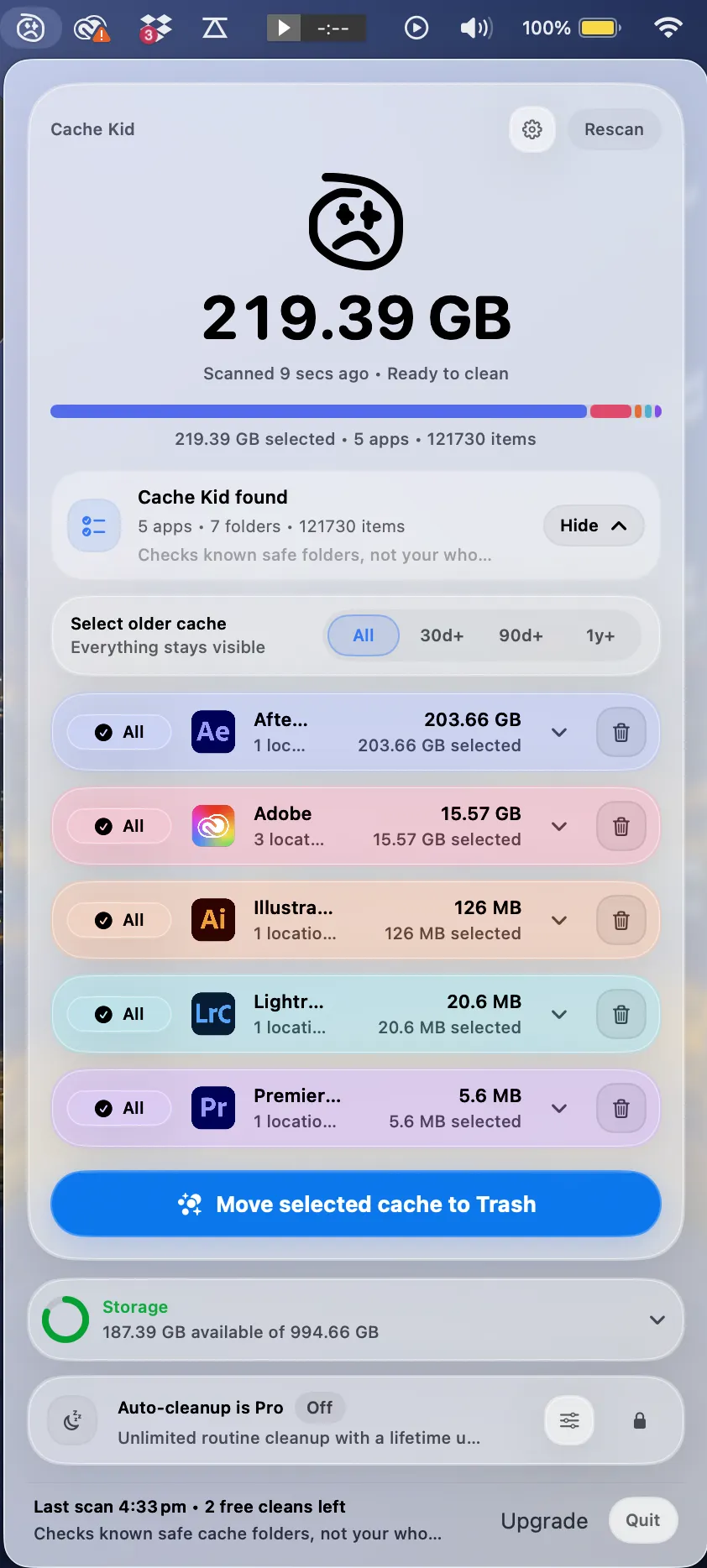
App-specific next steps
- Clear Adobe Creative Cloud cache
- Clear Premiere Pro cache
- Clear After Effects cache
- Clear DaVinci Resolve cache
- See why storage can stay full after deleting files
What Cache Kid will not clean
Cache Kid will not delete your 4K camera originals, project folders, delivered exports, iPhone backups, local snapshots, or Final Cut libraries. That is intentional. Those files need human review because they may be the work itself.
Last verified with Apple macOS Storage guidance updated in 2025 and current creative app cache workflows.
Related guide
Clear Adobe Creative Cloud Cache on Mac
Want the full cleanup walkthrough? This guide explains where the cache lives and what is safe to review before moving anything to Trash.

Review before you clear
Try Cache Kid for Adobe cache
Cache Kid is a macOS menu bar app that scans known Adobe cache folders, shows you what it found, and moves only what you select to Trash. Scans are free. Nothing is permanently deleted until you empty Trash yourself.
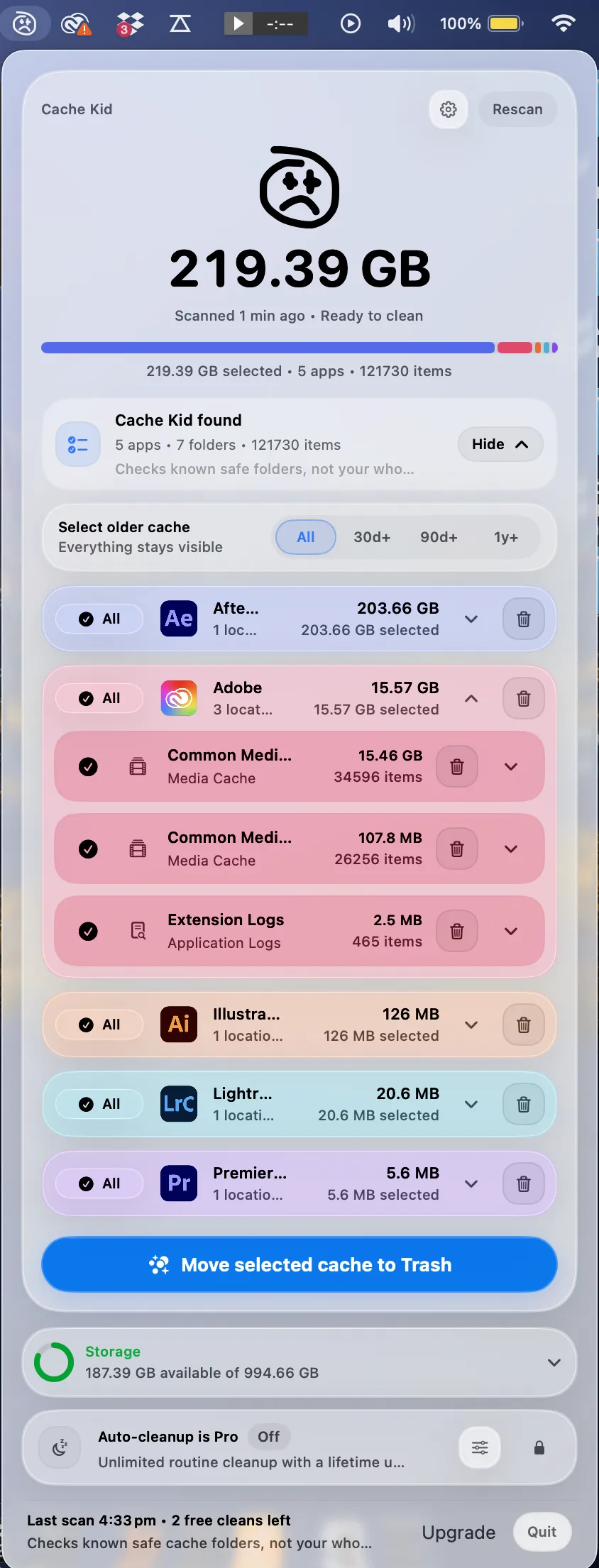
Scan, review sizes and paths, then clear only what you choose from the menu bar.
Scans are free. Upgrade only when you are ready to clear more.
Frequently asked questions
- How much free space should a creative Mac keep?
- A practical target is at least 10 to 20 percent free, and more for large Photoshop, Premiere, After Effects, or Resolve projects. Some workflows need 50 GB or more free just to stay stable.
- Should I delete files from Library to free space?
- Only delete folders you understand. Creative app cache is often rebuildable, but Library also contains preferences, project support data, and app state. Cache Kid focuses on known creative cache folders and shows a review step first.
- Will Cache Kid clean my whole Mac?
- No. Cache Kid is not a whole-Mac cleaner. It focuses on creative app cache folders and custom cache folders you choose to add.
More posts
Adobe
Adobe Common Folder Huge on Mac
Learn why the Adobe Common folder can grow so large on Mac and how to review media cache without deleting projects.
June 20, 2026
Mac Storage
Top Mac Cleaning Apps for Creatives in 2026
Compare general Mac cleaners and focused creative cache tools for Photoshop, Premiere Pro, After Effects, Resolve, and Final Cut Pro workflows.
June 20, 2026
Mac Storage
Why Is Mac Storage Still Full After Deleting Files?
Troubleshoot why free space does not return after deleting files on Mac, from Trash and snapshots to hidden creative cache.
June 13, 2026