
DaVinci Resolve
DaVinci Resolve cache and out of memory on Mac
Published May 23, 2026, updated May 23, 2026
Quick answer
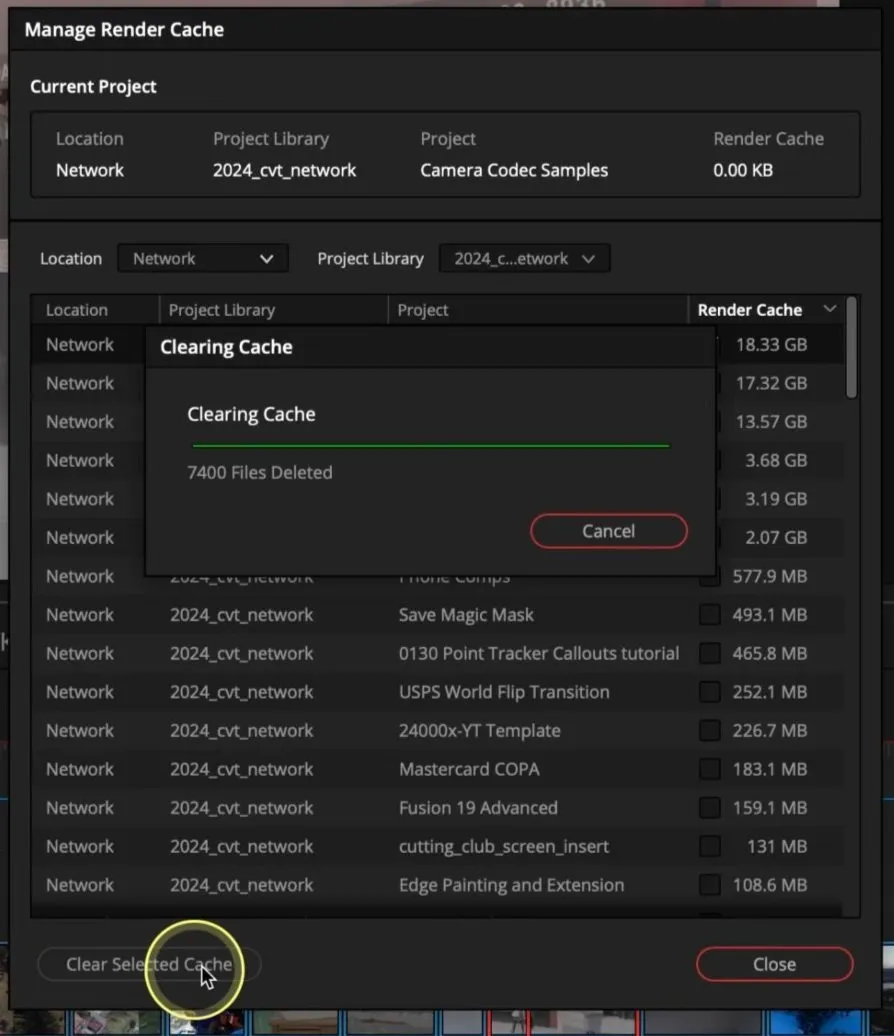
Quit Resolve if macOS shows an application memory warning, then clear render cache and check Working Folders. If the problem is GPU memory, use proxies, lower timeline resolution, or reduce heavy effects instead of relying on cache cleanup.
DaVinci Resolve out-of-memory warnings can come from disk pressure, render cache growth, optimized media, Fusion effects, or GPU memory limits. Clear cache when storage is tight, but use proxies, lower timeline resolution, or fewer effects if the problem is GPU memory.
Quick fix: quit Resolve if it is frozen, reopen the project, then choose Playback > Delete Render Cache > All.
What the memory warning means in Resolve
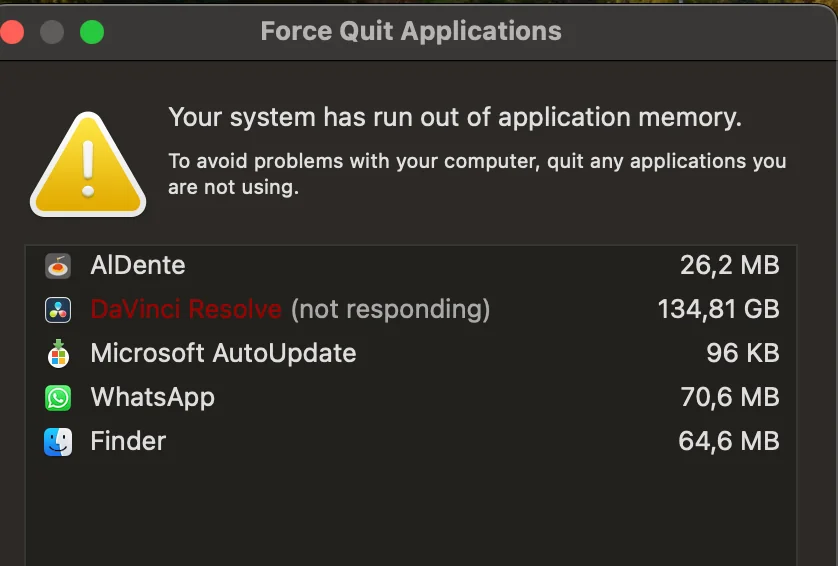
On Mac, the “Your system has run out of application memory” alert means macOS cannot keep up with current memory pressure. Resolve may be using too much memory, the startup disk may be too full for swap, or the timeline may be too heavy for the current hardware.
The alert does not automatically mean your Resolve project is damaged. It usually means the machine needs breathing room before you keep grading or exporting.
What to do first
- Force quit Resolve if it is not responding
- Restart your Mac if memory pressure stays high
- Clear render cache from Playback > Delete Render Cache > All
- Check Project Settings > Master Settings > Working Folders
- Use proxies or lower timeline resolution if GPU memory is the real issue
Resolve cache vs GPU memory
| Problem | Cache cleanup may help | Better fix |
|---|---|---|
| Startup disk nearly full | Yes | Free disk space and clear render cache |
| CacheClip folder huge | Yes | Delete render cache and review cache folders |
| Heavy Fusion comp | Sometimes | Render in place or simplify the comp |
| GPU memory error | Not reliably | Use proxies, lower resolution, reduce heavy effects |
| Long-GOP 10-bit footage | Sometimes | Generate proxy or optimized media |
Check Working Folders before manual cleanup
Resolve stores render cache, proxy media, optimized media, and gallery stills based on Media Storage and Working Folders. The first Media Storage location can matter for cache defaults, and project settings can override where files go.
That is why Finder cleanup can get messy fast. Before deleting anything manually, check the Cache files location, Proxy generation location, and Optimized media settings. Do not touch project databases, .drp exports, source footage, or gallery stills unless you know exactly what they are.
Review Resolve cache with Cache Kid
Cache Kid scans known Resolve cache and temporary folders, shows sizes and paths, and moves only selected items to Trash. It is useful when you want to review cache outside Resolve without touching projects or source media.
Use Resolve's built-in cache commands first when the project is open. Use Cache Kid for broader review-first cleanup across creative apps.
What Cache Kid will not fix
Cache Kid will not fix GPU VRAM limits, a broken Fusion node tree, unsupported codecs, or a project that exceeds your Mac's hardware. It helps with cache and storage, not every Resolve memory problem.
Last verified with current DaVinci Resolve cache workflows and macOS 15.
Related guide
Clear DaVinci Resolve Cache on Mac
Want the full cleanup walkthrough? This guide explains where the cache lives and what is safe to review before moving anything to Trash.

Review before you clear
Try Cache Kid for DaVinci Resolve cache
Cache Kid is a macOS menu bar app that scans known DaVinci Resolve cache folders, shows you what it found, and moves only what you select to Trash. Scans are free. Nothing is permanently deleted until you empty Trash yourself.
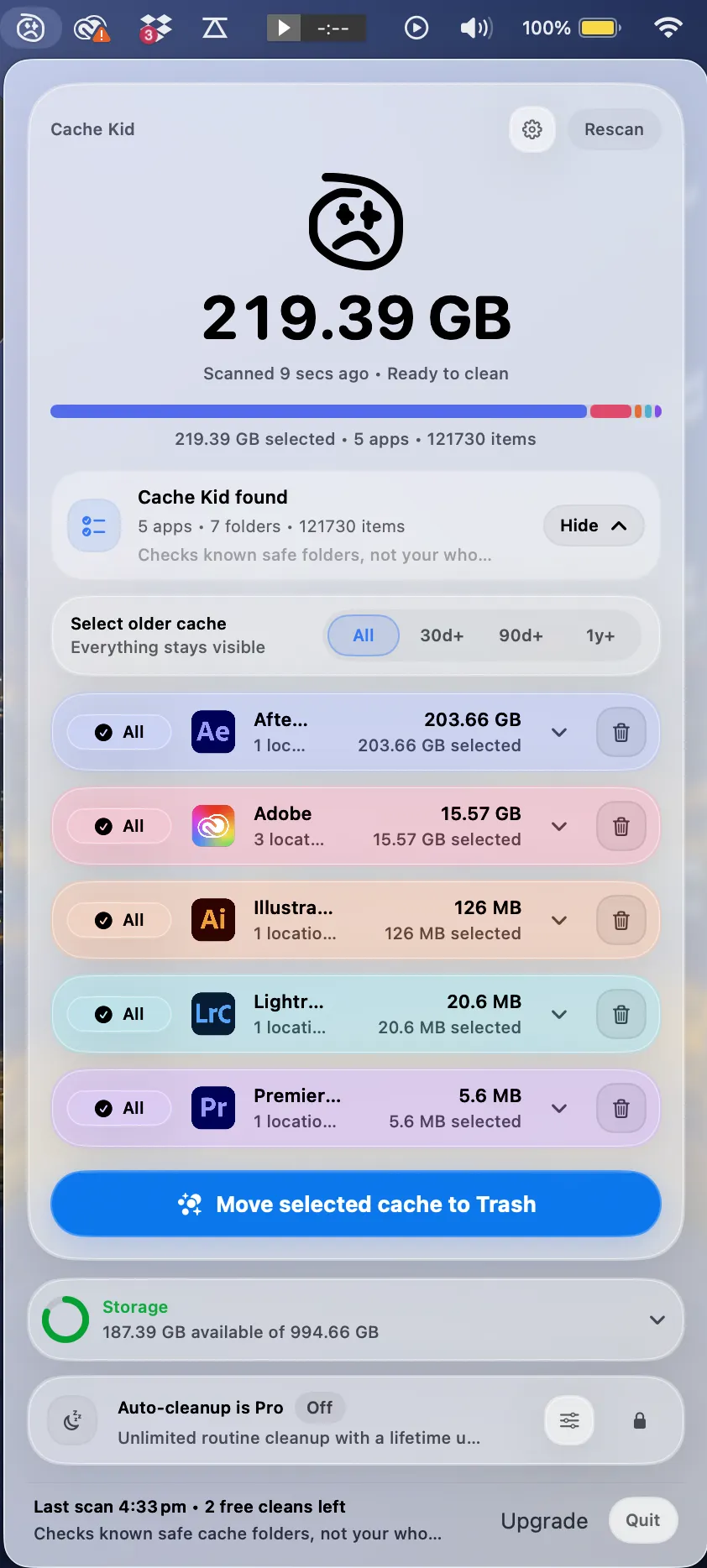
Scan, review sizes and paths, then clear only what you choose from the menu bar.
Scans are free. Upgrade only when you are ready to clear more.
Frequently asked questions
- Can clearing Resolve cache fix GPU out-of-memory errors?
- Not reliably. GPU memory errors usually need proxies, lower timeline resolution, fewer effects, or different GPU settings. Cache cleanup helps when storage or stale cache is part of the problem.
- What Resolve folders are usually safe to clear?
- Render cache and optimized media are usually rebuildable. Project databases, .drp files, source footage, and gallery stills should be handled carefully.
- Where does Resolve store cache on Mac?
- Resolve cache location depends on Working Folders and Media Storage settings. Check cache, proxy, and optimized media locations before manually deleting anything.
More posts

Adobe
Adobe Common Folder Huge on Mac
Learn why the Adobe Common folder can grow so large on Mac and how to review media cache without deleting projects.
June 20, 2026

Mac Storage
Top Mac Cleaning Apps for Creatives in 2026
Compare general Mac cleaners and focused creative cache tools for Photoshop, Premiere Pro, After Effects, Resolve, and Final Cut Pro workflows.
June 20, 2026
Mac Storage
Why Is Mac Storage Still Full After Deleting Files?
Troubleshoot why free space does not return after deleting files on Mac, from Trash and snapshots to hidden creative cache.
June 13, 2026